
Welcome to Part 1 of our Power Automate Working Hours Series!
Do you want to track your employees’ hours without using a fingerprint system?
In this series, we’ll show you how to use Power Automate to track working hours, automate attendance, and sync everything directly into Excel.
We’ll start by finding the Power Automate template, then cover formatting date/time, adjusting time zones, and more.

Here Comes Power Automate: Simple Solutions for Effortless Workflow Automation.
Easily track employee working hours using Power Automate with the ready-made template: “Track Your Working Hours in Excel Online (Business) Spreadsheet.
What’s amazing is that you can access it anywhere using your phone, PC, or tablet.
Additionally, you don’t need to open the Excel sheet every day to check attendance or see who was late. You can customize it to your needs and receive notifications by email or Microsoft Teams whenever an employee arrives, leaves, or is late.
Before You Start Configuring: What You Need to Know
To make this workflow available to all employees, you and your team must have Microsoft accounts with an active Automate license.
Step-by-Step Guide: Configuring Your Workflow
1- Go to https://make.powerautomate.com to start creating your workflow.
2- Click on the Templates section to explore ready-made automation options.
3-Search for “Track Your Working Hours in Excel Online (Business) Spreadsheet” to use the prebuilt template.
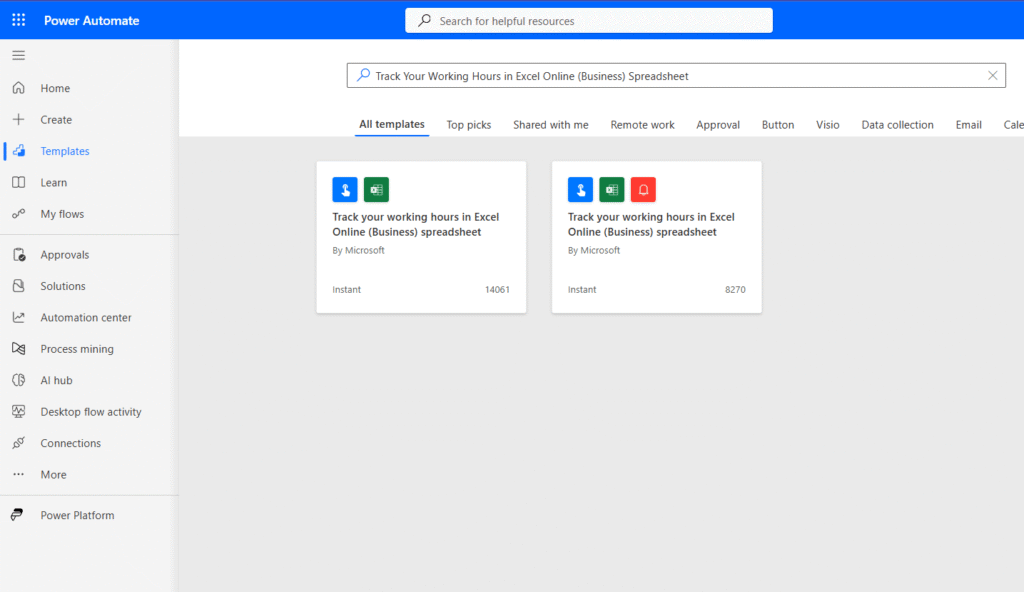
4- Choose where you want to save the data by selecting the location of your Excel file.
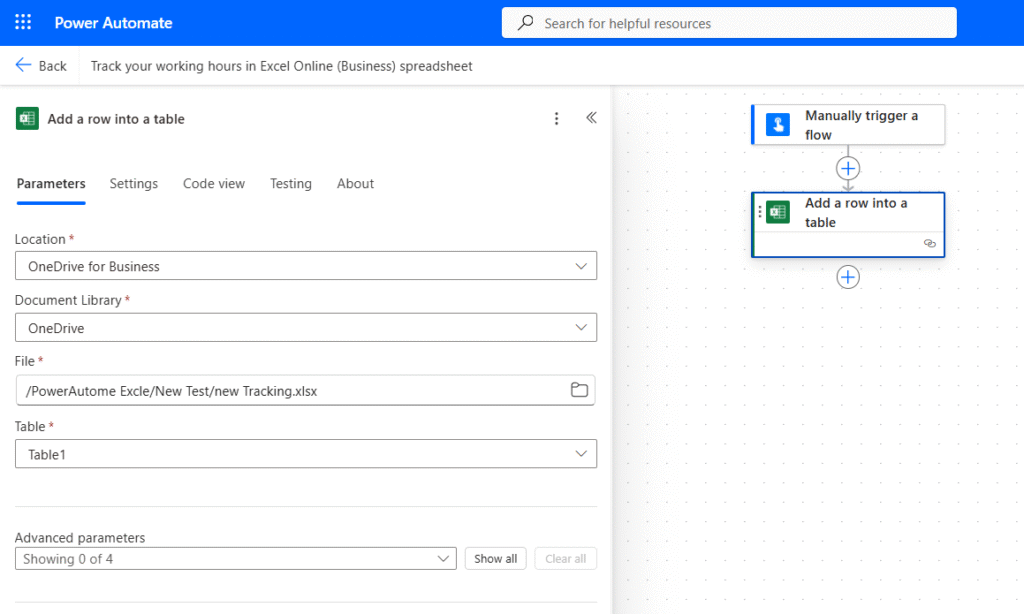
5- Then save your flow, and it’s ready to run.
Important Steps to Prepare Your Excel Sheet!
While choosing your Excel sheet in Power Automate, you can’t just create a new file, select it, and assume you’re done 😊.
You’ll also need to prepare and adjust the Excel sheet so Power Automate can read and store your working hours correctly. The good news? It’s simple, quick, and won’t take much time at all.
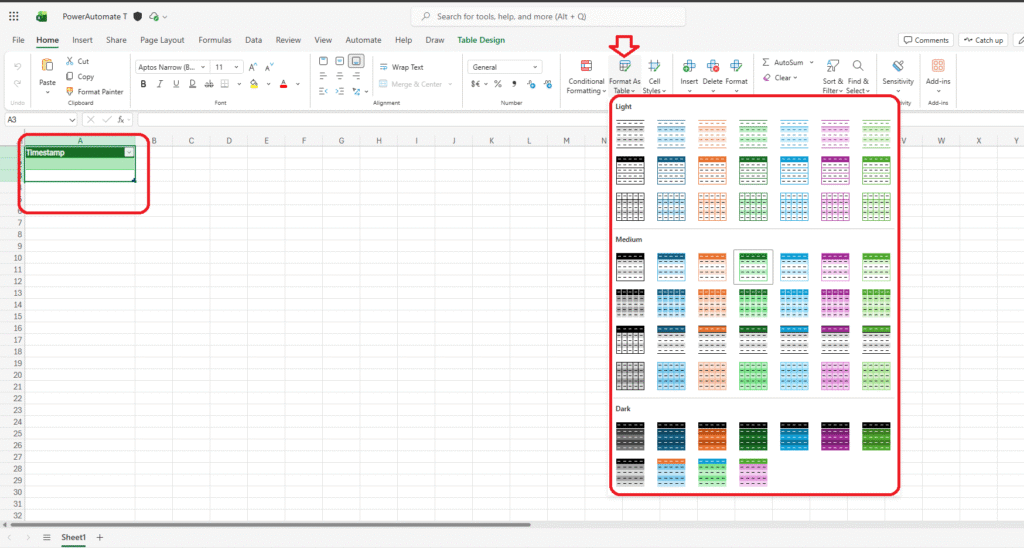
- Create an Excel sheet in your OneDrive or SharePoint (SharePoint is usually better because all employees can access the file easily).
- Select the first one or two columns in your sheet and format them as a Table. Power Automate only works with tables — if you skip this step, your flow will not work.
Now you know how to find the template in Power Automate and take your first step toward configuring it. However, the steps above are not enough to fully customize your automation.
You may still need to adjust important settings — such as how date/time appear in the Excel sheet, which time zone the flow should use, and in which language the working hours should be displayed.
This article is Part 1 of my Power Automate Working Hours series.
Ready for the next step?
👉 Click here to read Part 2: How to Format Date & Time in Power Automate.
At the end, I want to leave you with an open question:
Do you think allowing employees to track their working hours through Power Automate — and using that data for payroll — could open the door to manipulation or attempts to increase their salary?